 4Carbon
Give your next headline a visual home
Build a calm product launch, a bold seasonal offer or an editorial header. Arrange the subject and headline space together so the image works inside a real page.
Fixed quote16 creditsResolution: 1K · Background: Automatic · Image size: Landscape 16:9 · Quality: High · Output format: JPEG · Output images: 1
This preset uses the fixed credit quote shown. Auto is also quoted in advance. Prompt complexity and token usage do not add a charge after confirmation.
Cases and starting points
Sample Image
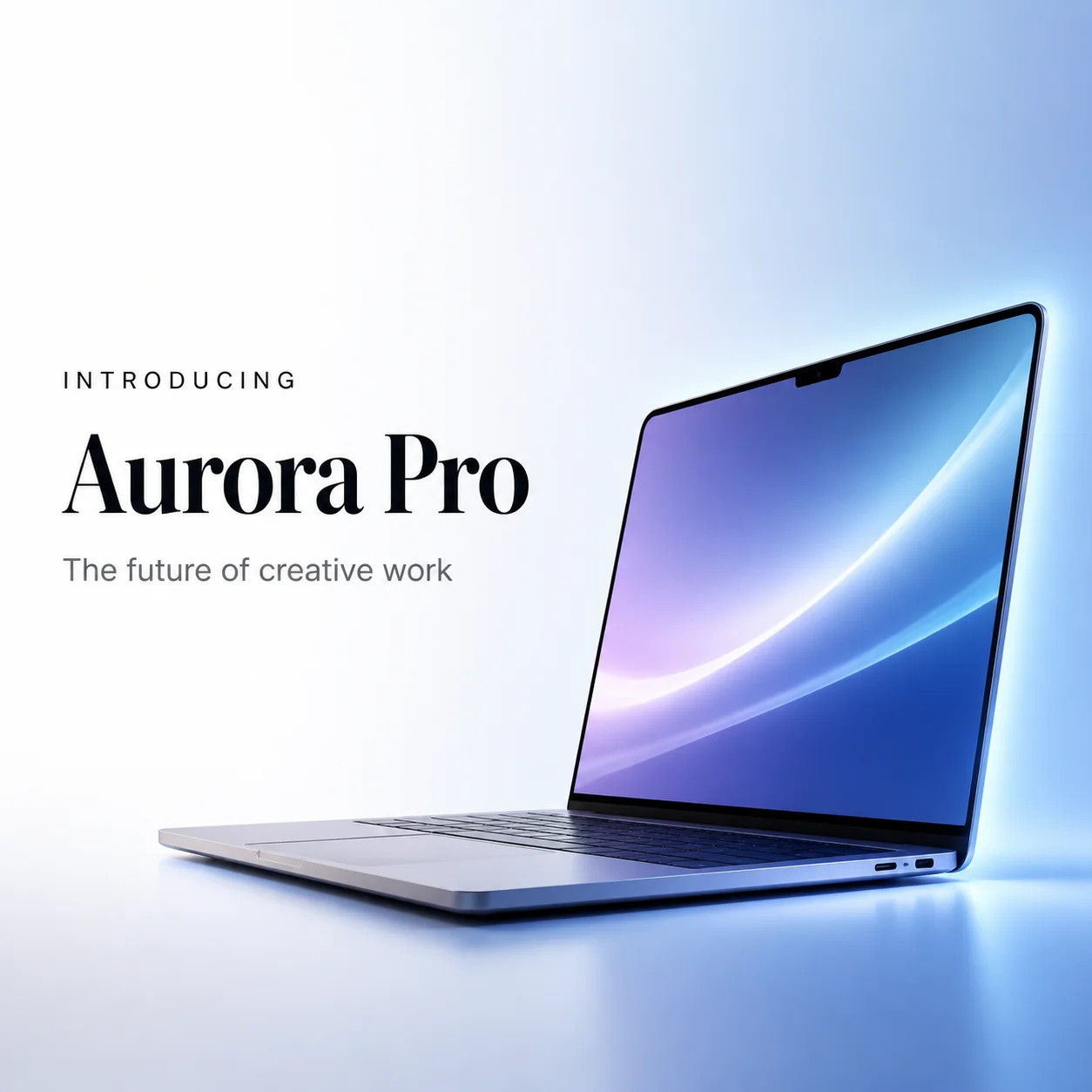
A laptop launch visual
Give your next headline a visual home
Build a calm product launch, a bold seasonal offer or an editorial header. Arrange the subject and headline space together so the image works inside a real page.
Visual hierarchy
Choose one focal subject and a quiet region for the headline and action button.
Responsive crops
Keep essential details away from crop edges and preview desktop and mobile placements.
Color and light
Coordinate lighting and color with the actual text and surrounding interface.
AI banner generator · Four steps
- STEP 1
Define the placement
Select GPT Image 2 text mode in the AI banner generator and describe the page purpose, main subject, and visual message.
- GPT Image 216:9 · 1KSTEP 2
Reserve text space
Give the AI banner generator a quiet headline area and a separate focal point, keeping important objects away from crop edges.
- STEP 3
Create the composition
Choose wide framing and 1K in the AI banner generator, review the displayed credits, and generate an uncluttered horizontal composition.
- STEP 4
Preview the layout
Check AI banner generator artwork in desktop and mobile layouts, adding editable webpage text separately and revising crops that lose the subject.
Download ↓
Features
Separate the headline from the product
The laptop banner places its product on the right and title area on the left.
What to put in the prompt
Choose the reading order before describing small effects.
- Reserve a region for the headline and action button.
- Check AI banner generator details behind the intended text block.
Use depth to guide attention
A soft foreground edge and a quieter distance can frame the main subject. Ask the AI banner generator for depth without too many objects along the horizon. The most detailed region should support the message rather than pull attention away from it.
Keep edges expendable
Place important faces, hands, products, or symbolic details away from the outer boundaries. The AI banner generator should leave scenery that can be cropped without changing the idea. A composition that depends on both extreme corners is difficult to reuse in narrower containers.

Use one strong visual motif
A saxophone carries the jazz poster through a limited navy-and-gold palette.
What to put in the prompt
Choose a recognizable motif rather than filling every corner.
- Preview the image in the intended desktop and mobile containers.
- Keep AI banner generator focal details away from uncertain edges.
Recompose when cropping loses the idea
If a narrow crop removes the relationship between subjects, create a separate composition rather than forcing the original to fit. The AI banner generator can explore another ratio. A mobile version may need a different subject position, not simply a larger crop of the face.
Check headers and overlays together
Place the banner beneath the actual navigation and text in your design preview. Review whether overlays cover important details. The AI banner generator cannot determine every layout interaction from a scene prompt; the final container, alignment, and responsive behavior must be checked separately.
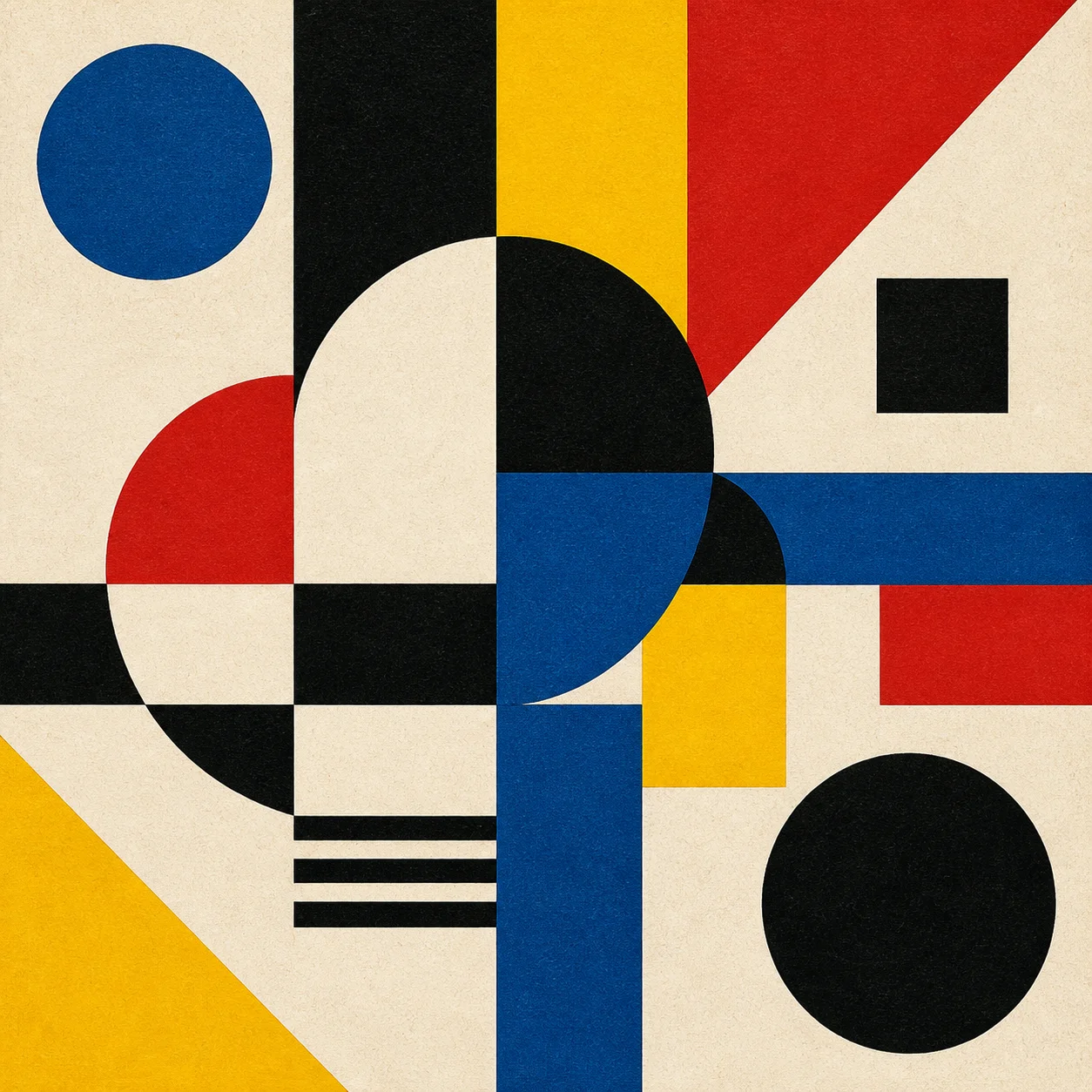
Let geometry organize the space
Simple blocks can make a useful campaign background.
What to put in the prompt
Leave clean areas where live webpage text can sit above the image.
- Use the real headline when reviewing the tonal background.
- Avoid AI banner generator detail that crosses through letterforms.
Coordinate rather than match everything
A restrained accent can connect the image with a brand color without tinting the entire scene. Tell the AI banner generator where that accent belongs. Natural materials and skin tones should not become implausible simply to make every pixel match the interface palette.
Avoid distracting light effects
Lens flares, bright windows, and strong glowing edges may compete with a call to action. Ask the AI banner generator for controlled illumination and a clear visual hierarchy. Save dramatic highlights for the focal subject when they contribute something meaningful to the message.

Build seasonal energy with color
The coral summer composition combines a product vignette and large headline.
What to put in the prompt
Treat the offer wording as draft copy and confirm the real promotion separately.
- Name the side that should hold the main subject.
- Tell the AI banner generator which region should remain quiet.
Use references for visual direction
Switch to image mode when a source scene or approved visual should guide the next version. The AI banner generator supports up to sixteen references there. Explain whether each source defines the subject, palette, or mood instead of expecting an uploaded collection to organize itself.
Revise composition before resolution
If the focal point overlaps the headline, correct its placement first. The AI banner generator offers multiple ratios, 1K, 2K, or 4K, and one to four outputs. Higher resolution does not solve an arrangement that leaves nowhere useful to put the page content.
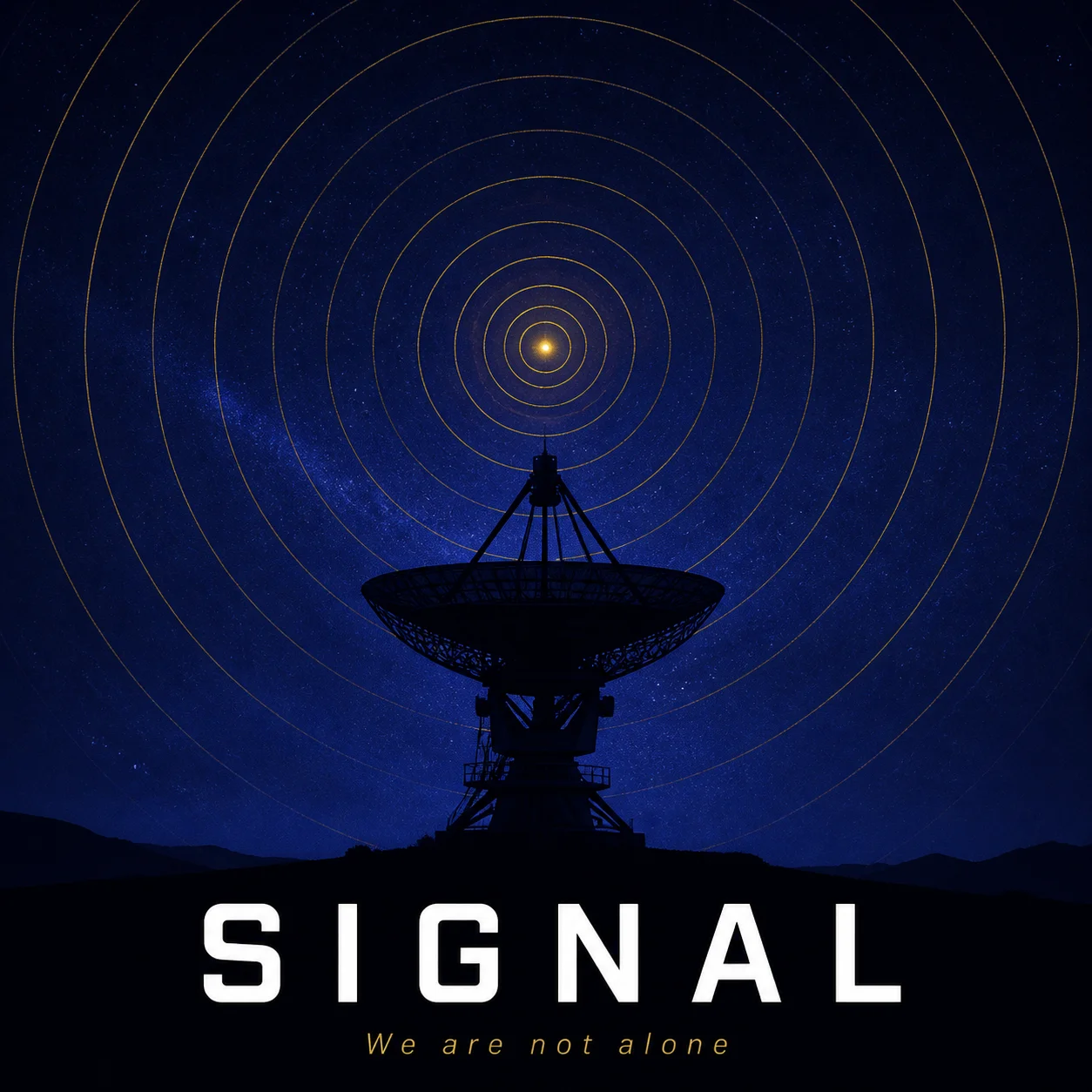
Check the crop before publishing
A quiet centered poster and a wide header need different framing.
What to put in the prompt
Preview the important subject and lettering in both desktop and mobile placements.
- Do not mistake pictured controls for functional interface elements.
- Use AI banner generator artwork as the visual layer only.
Inspect the exported image
Check faces, edges, object relationships, and smooth color areas at the size the banner will be displayed. An AI banner generator candidate may contain small defects that disappear in a thumbnail. Review the actual JPEG rather than approving only a reduced preview.
Review the full page rhythm
Compare the banner with the sections immediately above and below it. A strongly textured image may feel heavy beside an already busy workspace. Choose an AI banner generator direction that gives the page breathing room instead of treating the hero as an isolated poster.
Example prompts
Visual hierarchy
Choose one focal subject and a quiet region for the headline and action button.
Responsive crops
Keep essential details away from crop edges and preview desktop and mobile placements.
4Carbon Pricing and Credit Plans
Subscriptions and one-time credits for AI image and video creation.
Cancel future renewals anytime
Lite
Save about 50%$0.025 /credit
$179.00 billed yearly · Save $179.80/year
600 credits/month
Video models


Image models
 GPT Image 2Fixed quote: 22 credits · Default settings
- GPT Image 2.5 FlareFixed quote: 4 credits · Default settings
- GPT Image 2.5 SunburstFixed quote: 4 credits · Default settings
 Nano Banana 2 LiteFixed quote: 5 credits · Default settings
- Nano Banana 2Fixed quote: 8 credits · Default settings
- Nano Banana ProFixed quote: 15 credits · Default settings
 Seedream V5Fixed quote: 14 credits · Default settings
- Seedream Pro LayerizeReserved credits: 119 credits · Default settings
 Grok Imagine ImageFixed quote: 4 credits · Default settings
- Image and video model access
- The same model and settings use the same credits across plans.
- Pay yearly. Credits arrive monthly and expire at each monthly window end. Unused credits do not roll over.
Standard
Save about 50%$0.017 /credit
$299.00 billed yearly · Save $299.80/year
1,500 credits/month
Video models
Image models
- GPT Image 2Fixed quote: 22 credits · Default settings
- GPT Image 2.5 FlareFixed quote: 4 credits · Default settings
- GPT Image 2.5 SunburstFixed quote: 4 credits · Default settings
- Nano Banana 2 LiteFixed quote: 5 credits · Default settings
- Nano Banana 2Fixed quote: 8 credits · Default settings
- Nano Banana ProFixed quote: 15 credits · Default settings
- Seedream V5Fixed quote: 14 credits · Default settings
- Seedream Pro LayerizeReserved credits: 119 credits · Default settings
- Grok Imagine ImageFixed quote: 4 credits · Default settings
- Image and video model access
- The same model and settings use the same credits across plans.
- Pay yearly. Credits arrive monthly and expire at each monthly window end. Unused credits do not roll over.
Pro
Save about 50%$0.014 /credit
$599.00 billed yearly · Save $599.80/year
3,600 credits/month
Video models
Image models
- GPT Image 2Fixed quote: 22 credits · Default settings
- GPT Image 2.5 FlareFixed quote: 4 credits · Default settings
- GPT Image 2.5 SunburstFixed quote: 4 credits · Default settings
- Nano Banana 2 LiteFixed quote: 5 credits · Default settings
- Nano Banana 2Fixed quote: 8 credits · Default settings
- Nano Banana ProFixed quote: 15 credits · Default settings
- Seedream V5Fixed quote: 14 credits · Default settings
- Seedream Pro LayerizeReserved credits: 119 credits · Default settings
- Grok Imagine ImageFixed quote: 4 credits · Default settings
- Image and video model access
- The same model and settings use the same credits across plans.
- Pay yearly. Credits arrive monthly and expire at each monthly window end. Unused credits do not roll over.
Max 1×
Save about 50%$0.012 /credit
$1,199.00 billed yearly · Save $1,199.80/year
8,000 credits/month
Video models
Image models
- GPT Image 2Fixed quote: 22 credits · Default settings
- GPT Image 2.5 FlareFixed quote: 4 credits · Default settings
- GPT Image 2.5 SunburstFixed quote: 4 credits · Default settings
- Nano Banana 2 LiteFixed quote: 5 credits · Default settings
- Nano Banana 2Fixed quote: 8 credits · Default settings
- Nano Banana ProFixed quote: 15 credits · Default settings
- Seedream V5Fixed quote: 14 credits · Default settings
- Seedream Pro LayerizeReserved credits: 119 credits · Default settings
- Grok Imagine ImageFixed quote: 4 credits · Default settings
- Image and video model access
- The same model and settings use the same credits across plans.
- Pay yearly. Credits arrive monthly and expire at each monthly window end. Unused credits do not roll over.
Payment and confirmation
Pricing is shown for reference. Online checkout is not available at launch.
Credits, cancellation and refunds
Pay yearly. Credits arrive monthly and expire at each monthly window end. Unused credits do not roll over.
Subscription credits expire at each paid monthly window end. Cancellation stops the next renewal; paid access continues to period end.
One-time credits are valid for 12 calendar months. A pack does not start a subscription.
Cancellation stops future renewals. Refunds are reviewed separately. Approved purchase reversals reduce only that purchase’s entitlements proportionally; used or reserved credits require review. Other purchases are unaffected.
Frequently asked questions
Visual hierarchy+
Choose one focal subject and a quiet region for the headline and action button.
Responsive crops+
Keep essential details away from crop edges and preview desktop and mobile placements.
Color and light+
Coordinate lighting and color with the actual text and surrounding interface.
Wide starting setup+
Begin in text mode with GPT Image 2, wide framing, 1K and one JPEG output.
Reference direction+
Use image mode when an approved source should guide the subject, palette or mood.
Explore the tools
Video Tools
Video Models
Image Tools
Image Models
Creative Tools
Create a banner concept
Build a calm product launch, a bold seasonal offer or an editorial header. Arrange the subject and headline space together so the image works inside a real page.