 4Carbon
Give a still image a direction to move
Start with a composition you like, then guide the subject, camera and environment. Explore a parkour move, a turning dress or a changing paper landscape while keeping the opening image in view.
Fixed quote · per video152 creditsAspect ratio: Automatic · Resolution: 720p · Duration: 5 seconds · Generate audio: On · Reference images: 1
This preset uses the fixed credit quote shown. Auto is also quoted in advance. Prompt complexity and token usage do not add a charge after confirmation.
Cases and starting points
View prompt
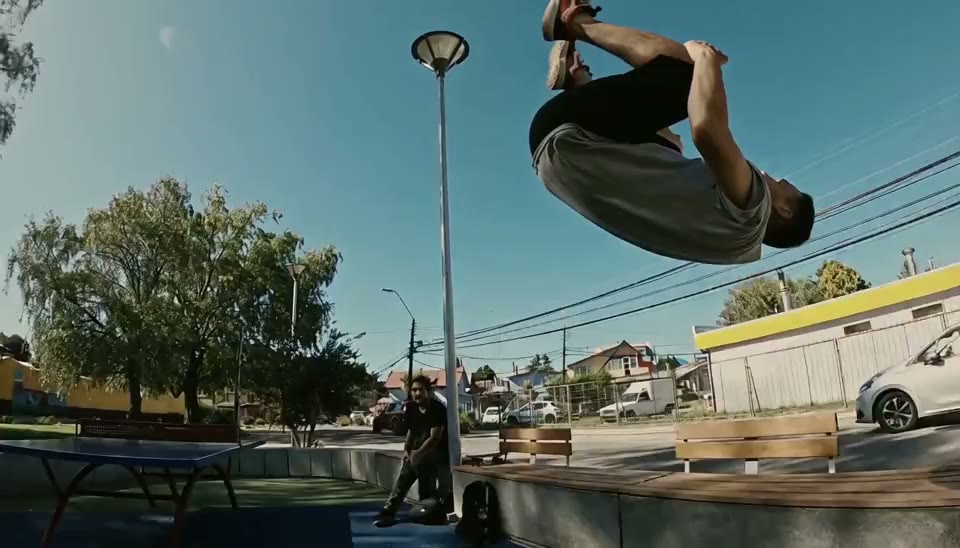
Use the supplied frame as a visual starting point. A sunny urban parkour shot. A young adult man in a white sleeveless top and dark trousers jumps and tucks over a low stone barrier. Follow the movement close to the ground with a rolling camera angle, showing the sky, trees and pale buildings turning through the frame. Keep the movement readable and the landing coherent.
Give a still image a direction to move
Start with a composition you like, then guide the subject, camera and environment. Explore a parkour move, a turning dress or a changing paper landscape while keeping the opening image in view.
How should I prepare the source?
Choose a clear subject, complete edges and deliberate framing. Leave space for movement or layout and retain the original.
How is the aspect ratio chosen?
Text generation uses supported ratio controls. Reference workflows also depend on source framing; some video models inherit its proportions.
Can I upload both first and last frames?
Kling 3.0 Standard and Pro accept a start frame and an optional end frame. The first image is the start and the second is the end; reorder to swap them. Other models retain their displayed reference limits. An end frame does not add a separate surcharge; duration, audio and variant determine the quote.
Image to video · Four steps
- Reference inputSTEP 1
Choose a complete opening image
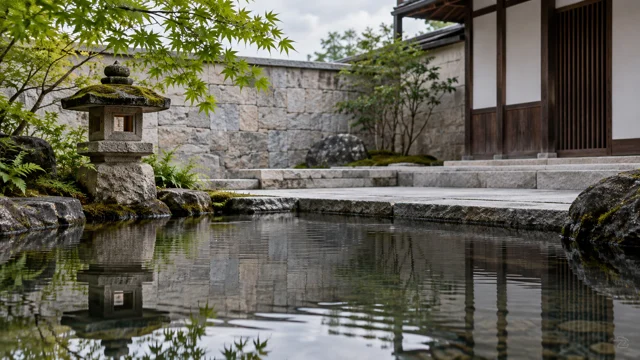
Upload the courtyard image as the opening frame. Keep the scene readable and the intended focal point visible.
- VideoSTEP 25s
Describe motion and stable elements
Describe the leaves, water, and slow camera push. Explain which stonework and scene elements must stay stationary.
- STEP 3
0s 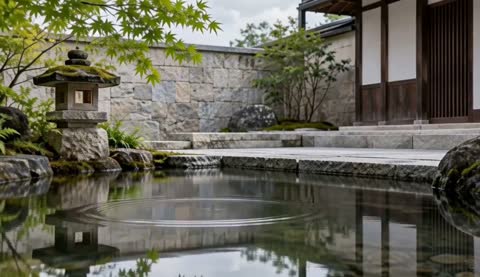
2.8s 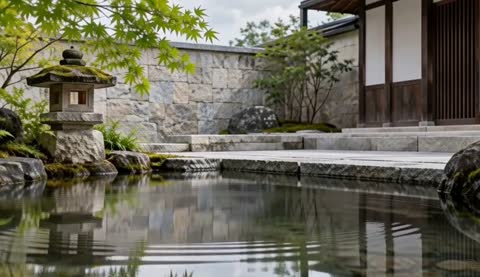
5s Confirm settings and the server quote
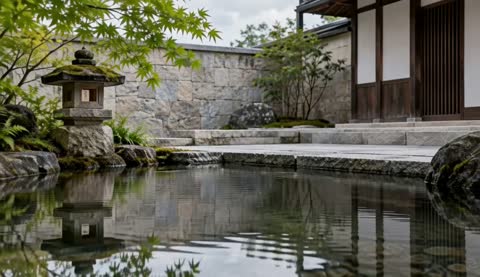
Review the opening, middle, and ending for unwanted changes. Use the current duration and audio quote before generation.
- STEP 4
Reference input Compare the whole clip with its source
Play the complete clip beside the opening image, checking architecture, water movement, and the ending before downloading.
Download ↓
Features
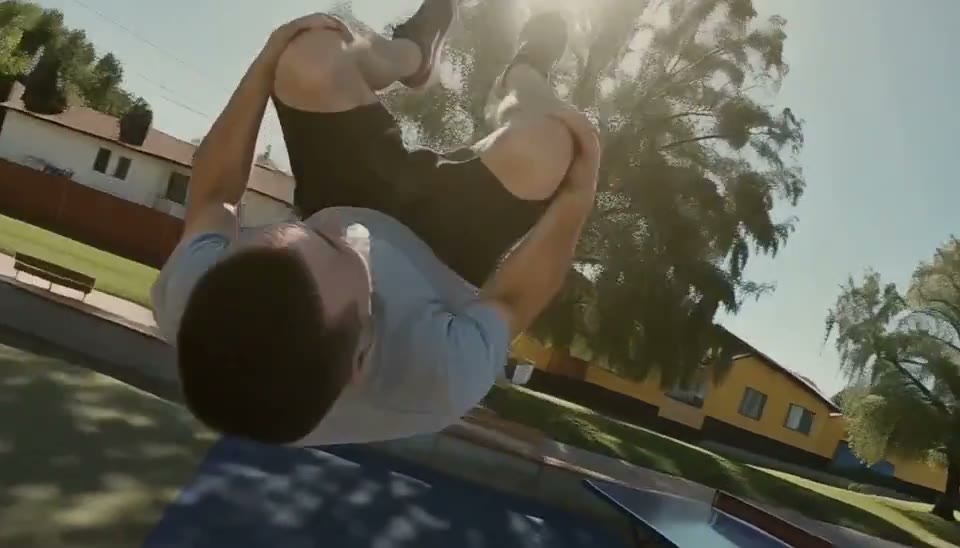
Separate the subject from the camera
The parkour example pairs a body movement with a rolling viewpoint.
What to put in the prompt
Write each movement separately so the intended action is easy to understand.
- Keep the important subject edges inside the source.
- Choose movement that respects the visible perspective.
Use one coherent source
Choose a clear image with a readable subject and consistent perspective. Existing paired examples show their real original input.
Match the source to the action
A restrained push-in suits the existing perfume-bottle image. A large rotation would require unseen sides to be inferred.
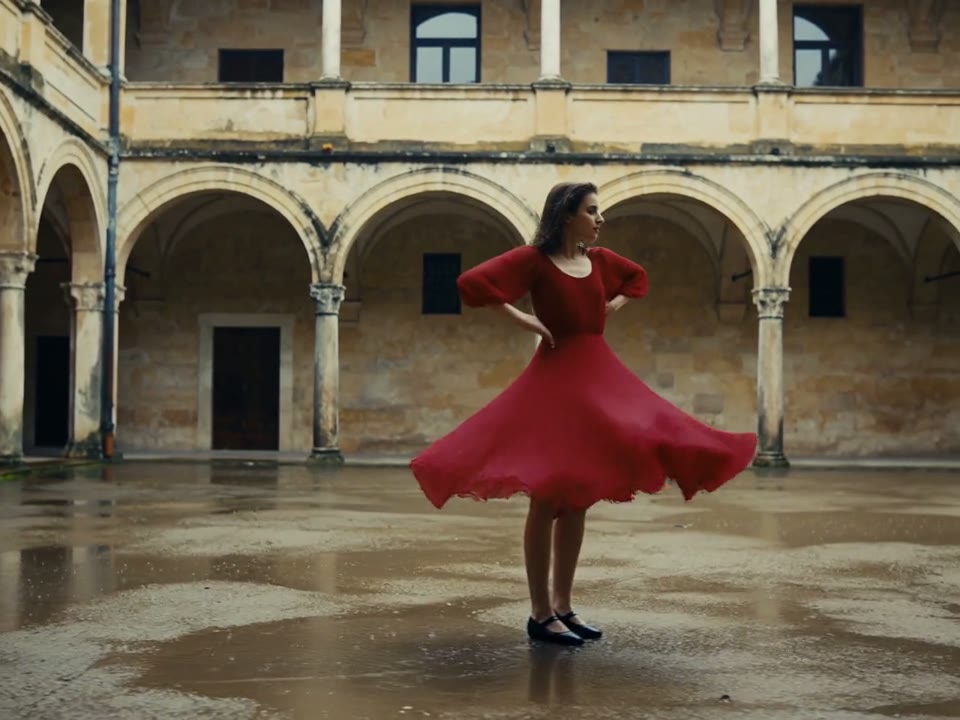
Keep the opening composition readable
The dancer begins in a full-body courtyard view.
What to put in the prompt
Make sure the source leaves enough room around the subject for the movement you want.
- Describe one main movement after the starting image.
- State what should remain steady.
Add restrained secondary motion
A little steam, light or water movement can support the shot. Missing examples remain prompt exercises rather than claimed results.
Say what should stay steady
Identify the product shape, background or pose that should remain stable. Inspect the result because stability is not guaranteed.
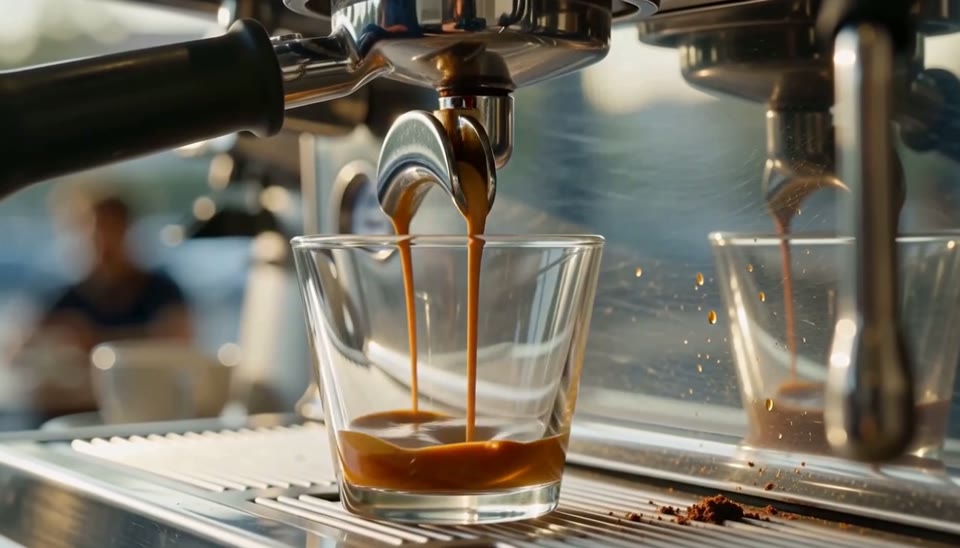
Animate the part that changes
Coffee can flow while the machine and counter remain still.
What to put in the prompt
Distinguish moving elements from the surfaces that should stay stable.
- The first upload starts the clip; an optional second upload defines its ending.
- Review the transition against the intended action.
Describe the journey between frames
Explain the intended movement rather than relying on two images to define every intermediate moment. Review the whole transition.
Keep the end frame optional
For Kling Standard or Pro, the first upload is the start and the second is the optional end. Reordering swaps their roles without adding a separate frame surcharge.
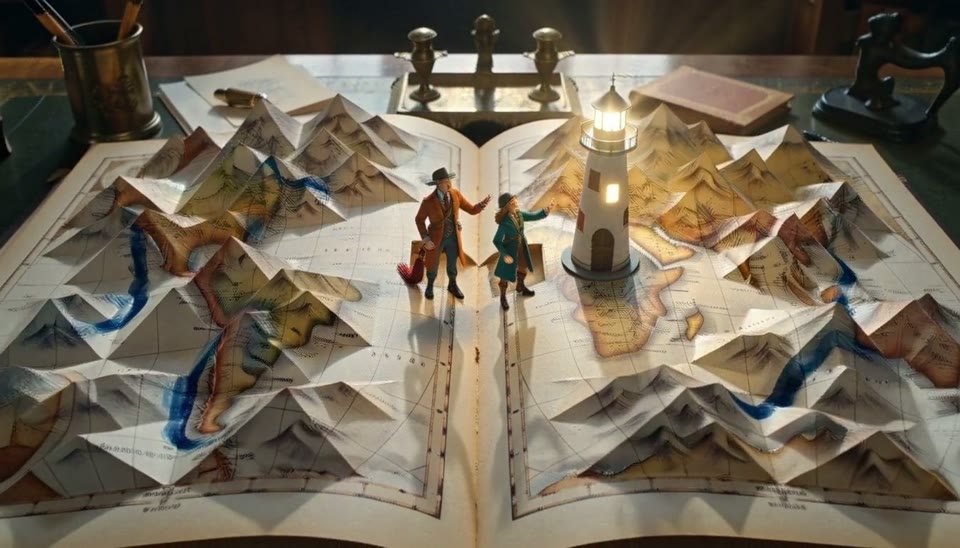
Plan a transformation around one object
The book-to-landscape scene uses the desk and book as a visual anchor.
What to put in the prompt
Keep the transformation connected to the supplied image.
Describe an audible environment
Choose audio only when the selected model exposes it. The published paired perfume clip was generated with audio disabled.
Allow a quiet moment
Not every shot needs rapid action. A pause or gentle ending can make a short product or scenery clip easier to use.
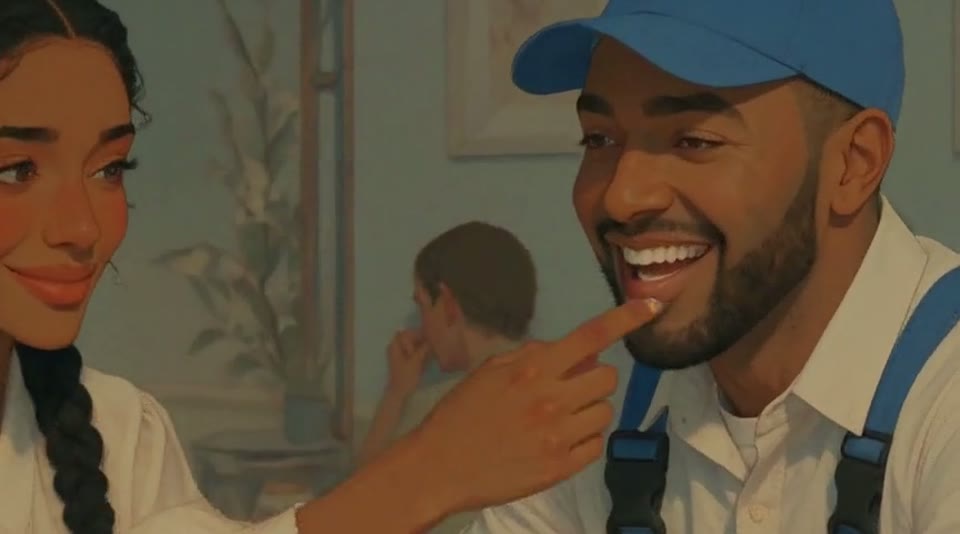
Review expressions across the clip
A cafe conversation depends on small gestures and recognizable faces.
What to put in the prompt
Compare the opening, middle and final frame rather than judging a single still.
Watch at normal speed
Use the full existing clip and its extracted frames for review. Frame illustrations do not replace playback of the complete result.
Choose the next settings deliberately
Changing variant, duration or audio changes the quote. Review the shared workspace estimate and confirmation before another submission.
Example prompts
Opening composition
A small amber perfume bottle on warm sandstone, a slow gentle camera push in, soft morning light moves across the glass, subtle natural room ambience, no speech, no lettering.
Courtyard reflections
Use your uploaded courtyard image. Add gentle pond ripples and slow leaf movement while the buildings stay stable; nearly fixed camera.
4Carbon Pricing and Credit Plans
Subscriptions and one-time credits for AI image and video creation.
Cancel future renewals anytime
Lite
Save about 50%$0.025 /credit
$179.00 billed yearly · Save $179.80/year
600 credits/month
Video models


Image models
 GPT Image 2Fixed quote: 22 credits · Default settings
- GPT Image 2.5 FlareFixed quote: 4 credits · Default settings
- GPT Image 2.5 SunburstFixed quote: 4 credits · Default settings
 Nano Banana 2 LiteFixed quote: 5 credits · Default settings
- Nano Banana 2Fixed quote: 8 credits · Default settings
- Nano Banana ProFixed quote: 15 credits · Default settings
 Seedream V5Fixed quote: 14 credits · Default settings
- Seedream Pro LayerizeReserved credits: 119 credits · Default settings
 Grok Imagine ImageFixed quote: 4 credits · Default settings
- Image and video model access
- The same model and settings use the same credits across plans.
- Pay yearly. Credits arrive monthly and expire at each monthly window end. Unused credits do not roll over.
Standard
Save about 50%$0.017 /credit
$299.00 billed yearly · Save $299.80/year
1,500 credits/month
Video models
Image models
- GPT Image 2Fixed quote: 22 credits · Default settings
- GPT Image 2.5 FlareFixed quote: 4 credits · Default settings
- GPT Image 2.5 SunburstFixed quote: 4 credits · Default settings
- Nano Banana 2 LiteFixed quote: 5 credits · Default settings
- Nano Banana 2Fixed quote: 8 credits · Default settings
- Nano Banana ProFixed quote: 15 credits · Default settings
- Seedream V5Fixed quote: 14 credits · Default settings
- Seedream Pro LayerizeReserved credits: 119 credits · Default settings
- Grok Imagine ImageFixed quote: 4 credits · Default settings
- Image and video model access
- The same model and settings use the same credits across plans.
- Pay yearly. Credits arrive monthly and expire at each monthly window end. Unused credits do not roll over.
Pro
Save about 50%$0.014 /credit
$599.00 billed yearly · Save $599.80/year
3,600 credits/month
Video models
Image models
- GPT Image 2Fixed quote: 22 credits · Default settings
- GPT Image 2.5 FlareFixed quote: 4 credits · Default settings
- GPT Image 2.5 SunburstFixed quote: 4 credits · Default settings
- Nano Banana 2 LiteFixed quote: 5 credits · Default settings
- Nano Banana 2Fixed quote: 8 credits · Default settings
- Nano Banana ProFixed quote: 15 credits · Default settings
- Seedream V5Fixed quote: 14 credits · Default settings
- Seedream Pro LayerizeReserved credits: 119 credits · Default settings
- Grok Imagine ImageFixed quote: 4 credits · Default settings
- Image and video model access
- The same model and settings use the same credits across plans.
- Pay yearly. Credits arrive monthly and expire at each monthly window end. Unused credits do not roll over.
Max 1×
Save about 50%$0.012 /credit
$1,199.00 billed yearly · Save $1,199.80/year
8,000 credits/month
Video models
Image models
- GPT Image 2Fixed quote: 22 credits · Default settings
- GPT Image 2.5 FlareFixed quote: 4 credits · Default settings
- GPT Image 2.5 SunburstFixed quote: 4 credits · Default settings
- Nano Banana 2 LiteFixed quote: 5 credits · Default settings
- Nano Banana 2Fixed quote: 8 credits · Default settings
- Nano Banana ProFixed quote: 15 credits · Default settings
- Seedream V5Fixed quote: 14 credits · Default settings
- Seedream Pro LayerizeReserved credits: 119 credits · Default settings
- Grok Imagine ImageFixed quote: 4 credits · Default settings
- Image and video model access
- The same model and settings use the same credits across plans.
- Pay yearly. Credits arrive monthly and expire at each monthly window end. Unused credits do not roll over.
Payment and confirmation
Pricing is shown for reference. Online checkout is not available at launch.
Credits, cancellation and refunds
Pay yearly. Credits arrive monthly and expire at each monthly window end. Unused credits do not roll over.
Subscription credits expire at each paid monthly window end. Cancellation stops the next renewal; paid access continues to period end.
One-time credits are valid for 12 calendar months. A pack does not start a subscription.
Cancellation stops future renewals. Refunds are reviewed separately. Approved purchase reversals reduce only that purchase’s entitlements proportionally; used or reserved credits require review. Other purchases are unaffected.
Frequently asked questions
How should I prepare the source?+
Choose a clear subject, complete edges and deliberate framing. Leave space for movement or layout and retain the original.
How is the aspect ratio chosen?+
Text generation uses supported ratio controls. Reference workflows also depend on source framing; some video models inherit its proportions.
Can I upload both first and last frames?+
Kling 3.0 Standard and Pro accept a start frame and an optional end frame. The first image is the start and the second is the end; reorder to swap them. Other models retain their displayed reference limits. An end frame does not add a separate surcharge; duration, audio and variant determine the quote.
How do I describe natural motion?+
Choose one main action, its scale and what stays steady: a slight turn or moving water, rather than changing everything.
How should I describe camera motion?+
Specify a restrained push, pan or fixed view. Large moves may reveal areas missing from the source.
Explore the tools
Video Tools
Video Models
Image Tools
Image Models
Creative Tools
Set this image in motion
Start with a composition you like, then guide the subject, camera and environment. Explore a parkour move, a turning dress or a changing paper landscape while keeping the opening image in view.